
Free and open source · Windows 10 and 11
Private meeting notes that never leave your PC.
OpenForesight transcribes the call, turns your shorthand into proper notes, answers questions from your own documents and writes the summary, all on your own computer.
What it does
It works with Teams, Zoom, Meet or anything else, without joining the call.
-
Live transcript
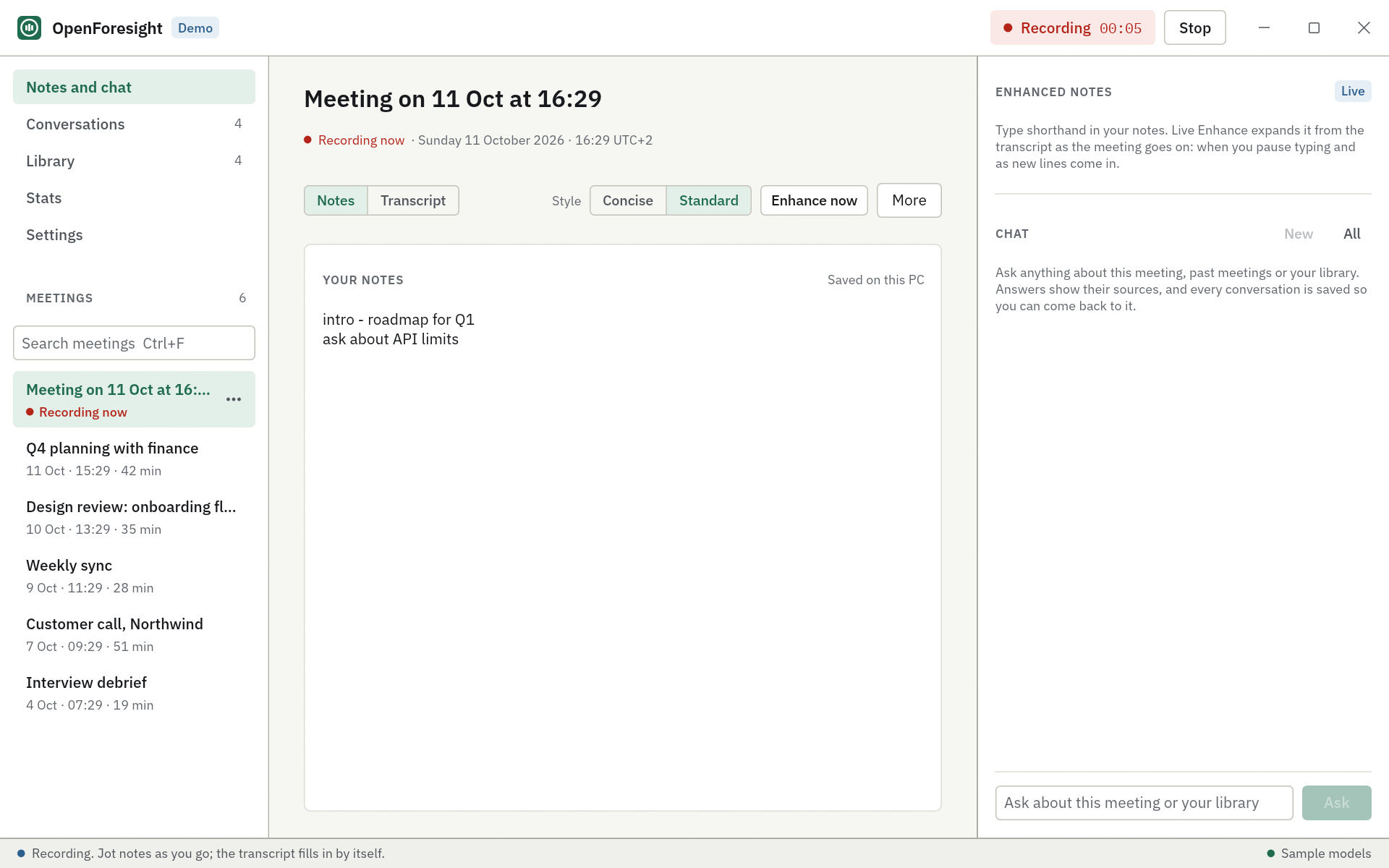
Your microphone as "Me" and your PC's audio as "Others". If one of the two is missing, it records the other.
-
Shorthand notes
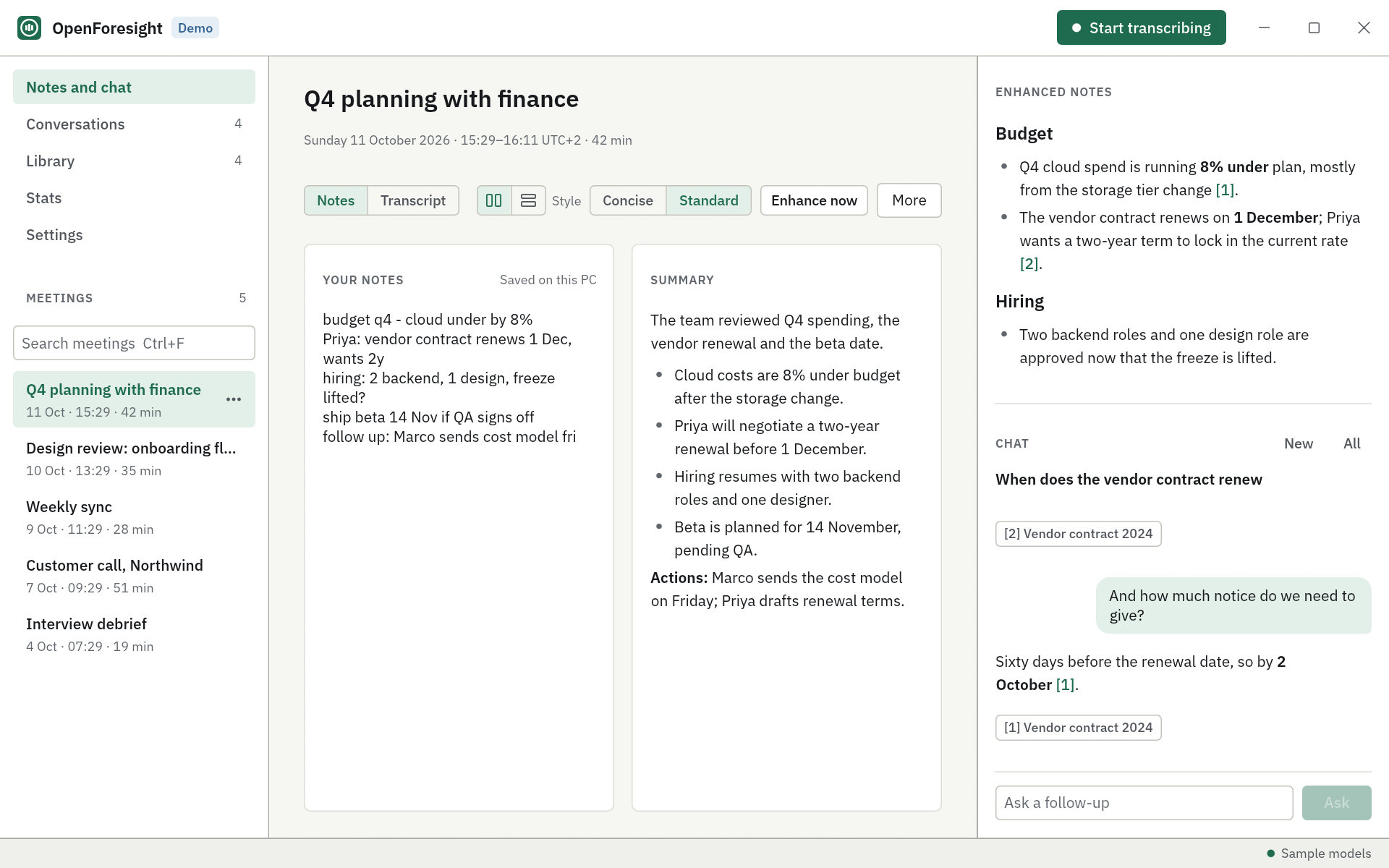
Type the way you think. Live Enhance turns your shorthand into readable notes and keeps every point you wrote.
-
A summary at the end
When the meeting ends, a summary based only on what was said.
-
Chat with citations
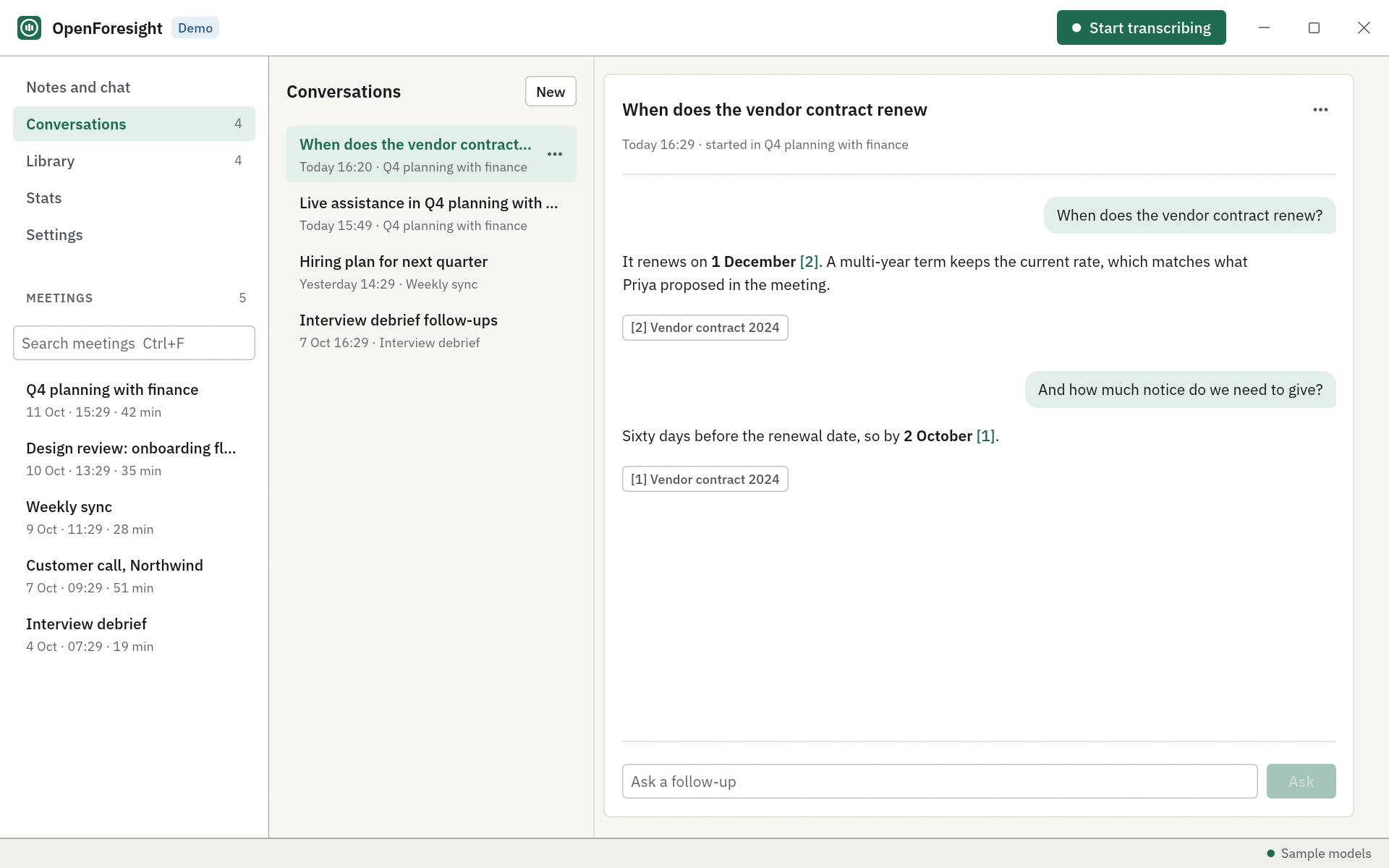
Ask about the meeting, past meetings and your documents. Answers show numbered sources and are saved as conversations. Live Assistance drafts answers to questions others ask.
-
A local library
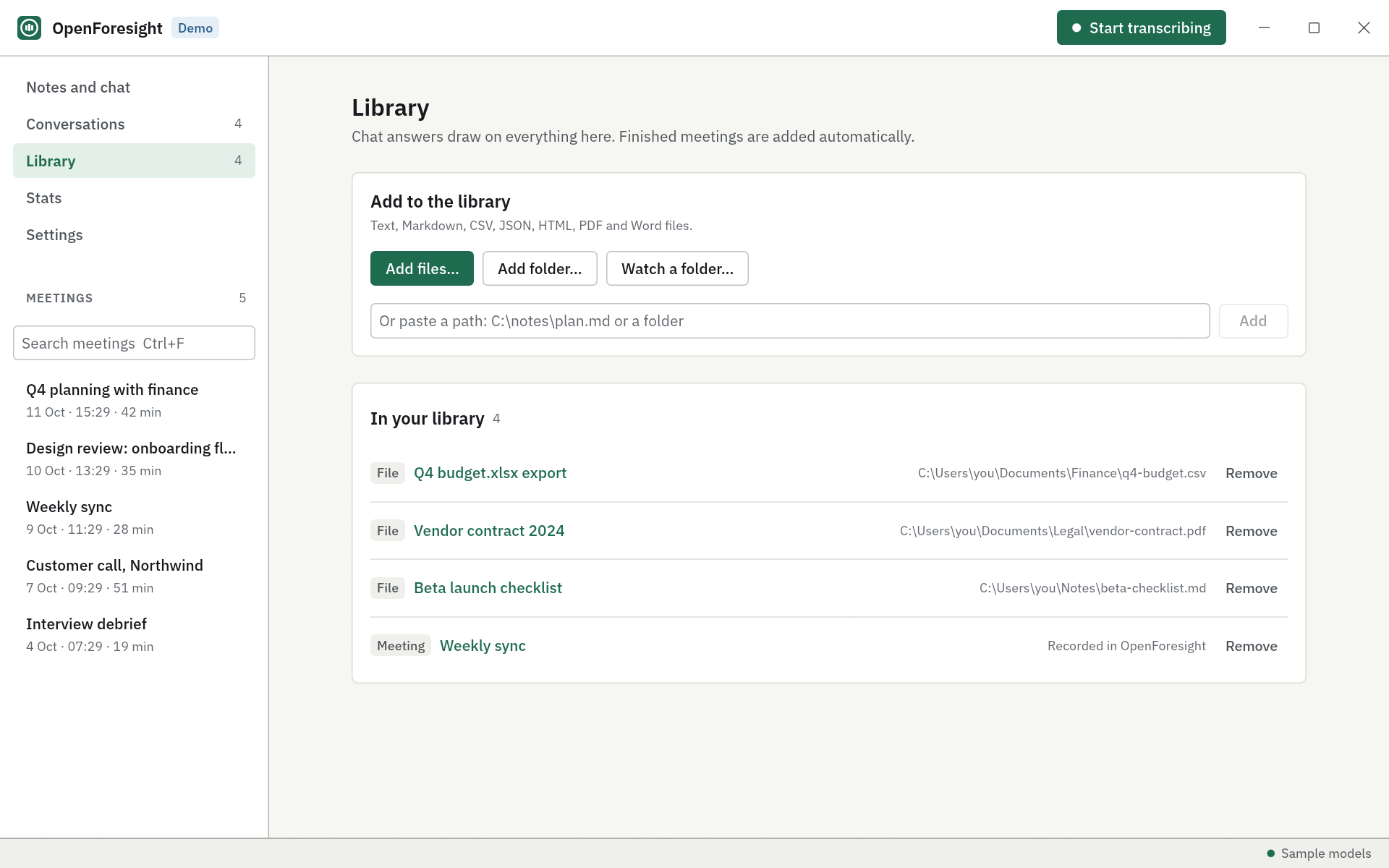
Text, Markdown, CSV, JSON, HTML, PDF and Word files, plus folders it watches for changes.
-
Export
Save any meeting as Markdown or Word.
A meeting in practice
Click Start transcribing and type hiring: 2 backend, 1 design, freeze lifted?. Live Enhance turns it into "Two backend roles and one design role are approved now that the freeze is lifted", citing the transcript where it can. Ask "when does the vendor contract renew?" and the answer shows its sources. Click Stop and the summary appears.
Privacy
Audio, transcripts, notes, documents and AI processing stay on your PC. There is no telemetry, no account and no background process. The only network traffic is model downloads you start, from Hugging Face over HTTPS. After that, OpenForesight works offline.
Open models
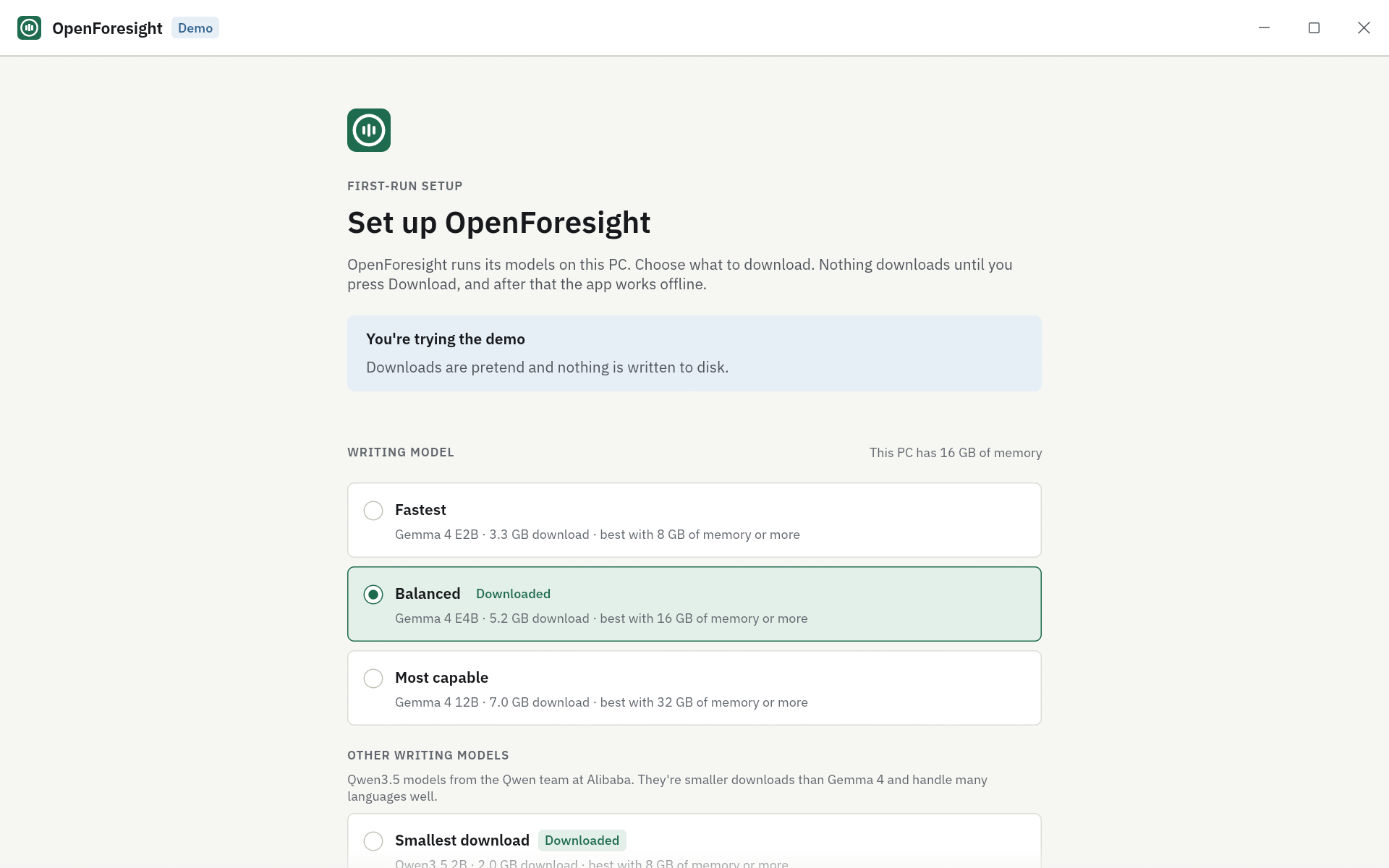
Writing runs on Google's open-weight Gemma 4, or Qwen3.5 4B and 2B. Search uses EmbeddingGemma 2, and speech is transcribed by Whisper. The models are downloaded separately under their publishers' terms; the app contains none.
OpenForesight is a clean-room reimplementation of the workflow of Google AI Edge Foresight, a Mac-only app, written in Rust. It is not affiliated with Google.
Install
- Download
OpenForesight-1.4.0-setup.exeand its.sha256file from the latest release. - Check the download. In PowerShell, the hash this prints must match the one in the
.sha256file:
The installer isn't code-signed yet, so Windows SmartScreen asks you to confirm: More info, then Run anyway.Get-FileHash .\OpenForesight-1.4.0-setup.exe - Run the installer. It needs no admin rights, installs only for your Windows account and contains no AI models.
- On first start, a setup wizard recommends models for your PC's memory, shows their sizes and licences, and downloads them when you click Download (about 6.4 GB on a 16 GB PC).
System requirements
| Minimum | Recommended | |
|---|---|---|
| Windows | Windows 10 22H2, 64-bit | Windows 11, 64-bit |
| Memory | 8 GB RAM | 16 GB RAM or more |
| Disk | 5 GB free | 10 GB free |
| Processor | x86-64 with AVX2 | 8 or more cores |
| Audio | A microphone, PC sound, or both | Headphones |
Everything runs on the CPU in the released build. Speakers are labelled "Me" and "Others"; named speakers are planned.
Build from source
You need Windows 10 or 11 and Rust 1.88 or newer. The demo runs the full interface with placeholder models and no C++ toolchain.
git clone --recurse-submodules https://github.com/alpha912/OpenForesight
cd OpenForesight
cargo run -p openforesight -- --demo
Contributing
Contributions are welcome. OpenForesight is written from public documentation only, never from Google's app, and every commit is signed off under the Developer Certificate of Origin.